Free Android App Icon Generator for Play Store
This Android app icon generator helps developers create all required launcher icon sizes from one source image. Instead of manually resizing your logo for mdpi, hdpi, xhdpi, xxhdpi and xxxhdpi folders, you can generate a complete icon set in seconds.
It is useful for Android Studio, Flutter, React Native, Kotlin, Java and Google Play publishing. The goal is simple: upload your app logo, generate the correct icon sizes, and prepare your app for a cleaner Play Store launch.
Android App Icon Size Chart
| Density | Icon Size | Folder | Use |
|---|---|---|---|
| mdpi | 48×48 px | mipmap-mdpi | Baseline Android icon |
| hdpi | 72×72 px | mipmap-hdpi | Medium-density screens |
| xhdpi | 96×96 px | mipmap-xhdpi | High-density phones |
| xxhdpi | 144×144 px | mipmap-xxhdpi | Modern flagship devices |
| xxxhdpi | 192×192 px | mipmap-xxxhdpi | Extra high-density devices |
| Play Store | 512×512 px | Upload separately | Google Play listing icon |
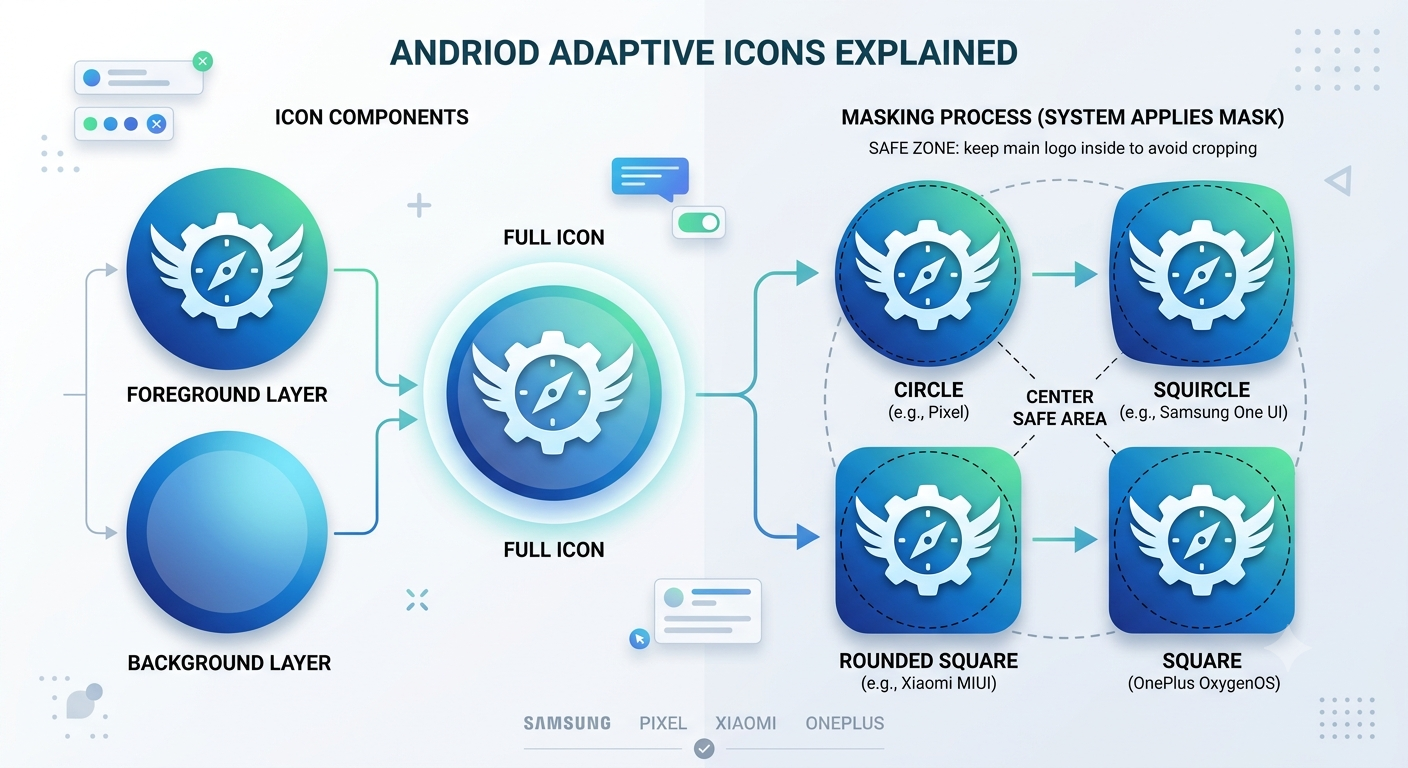
Adaptive Icons Explained
Android adaptive icons use separate foreground and background layers. The Android system then applies different masks such as circle, squircle or rounded square depending on the device launcher.
Keep your main logo inside the center safe area so it does not get cropped on Samsung, Pixel, Xiaomi, OnePlus or other Android launchers.
How to Use This Android Icon Generator
- Upload your app logo or source image.
- Use a square image for the best result.
- Generate Android launcher icons in all required sizes.
- Download the icon files.
- Add them to your Android project inside the correct
mipmapfolders.
Android Studio, Flutter and React Native Support
Android Studio
Use the generated icons inside your native Android project under the app resource folders.
Flutter
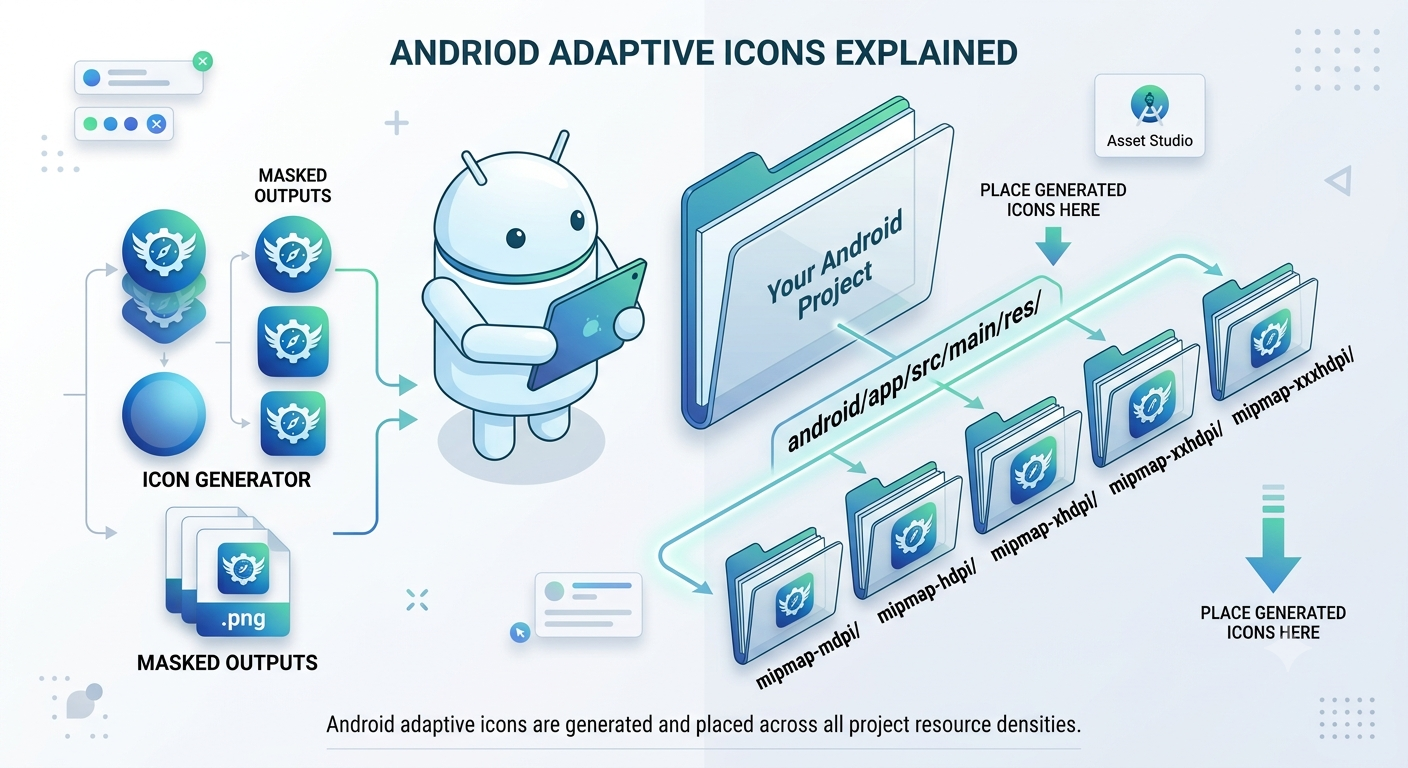
Flutter Android apps use the same launcher icon structure inside android/app/src/main/res/.
React Native
React Native Android apps also use standard Android mipmap folders for launcher icons.
Where to Place Generated Android Icons
Place the generated icons inside your Android project resource directory. Common folders include:
android/app/src/main/res/
├── mipmap-mdpi/
├── mipmap-hdpi/
├── mipmap-xhdpi/
├── mipmap-xxhdpi/
└── mipmap-xxxhdpi/
Common Play Store Icon Mistakes
- Using a blurry or low-resolution source logo.
- Uploading JPG instead of PNG.
- Putting important logo details too close to the edge.
- Using text inside the icon that becomes unreadable.
- Forgetting the 512×512 Play Store listing icon.
- Not testing how the icon looks on different launcher shapes.
Best Practices for Android App Icons
- Use a clean, simple logo that is visible at small sizes.
- Keep strong contrast between the icon and background.
- Avoid tiny text, complex shadows and crowded details.
- Use a 512×512 or larger source image when possible.
- Check your icon in circle, square and rounded masks.
Related Free Tools
Frequently Asked Questions
What size should an Android app icon be?
You need multiple sizes: 48×48, 72×72, 96×96, 144×144, 192×192 and a separate 512×512 icon for Google Play.
What is the Play Store icon size?
The Google Play Store high-resolution icon should be 512×512 pixels in PNG format.
Can I use this for Flutter apps?
Yes. Flutter Android projects use the same Android mipmap folder structure.
Can I use this for React Native apps?
Yes. React Native Android projects also use standard Android launcher icon folders.