Google Play Screenshot Size Guide (2026): Dimensions, Requirements & Best Practices
Learn the correct Google Play screenshot sizes, dimensions, aspect ratios, formats, phone and tablet requirements, design tips, and Play Console best practices.
Google Play Screenshot Size Guide (2026)
Google Play screenshots give potential users their first real look inside your application. While your app icon attracts attention and your feature graphic builds branding, screenshots demonstrate the actual interface, features, and user experience.
High-quality screenshots can help users understand your app before installing it. Poorly designed, blurry, stretched, or outdated screenshots can make even a well-built app appear unreliable.
In this complete guide, you will learn:
- Google Play screenshot size requirements
- Phone screenshot dimensions
- Portrait and landscape aspect ratios
- Tablet screenshot requirements
- File formats and limits
- Recommended number of screenshots
- Screenshot design best practices
- Text and tagline guidelines
- Common Play Console mistakes
- Publishing and optimization tips
Preparing your Google Play graphics?
👉 Create a Google Play Feature Graphic
Quick Answer
Google Play screenshots must use JPEG or 24-bit PNG without transparency. Each side must be between 320 and 3840 pixels, and the longer dimension cannot be more than twice the shorter dimension. For stronger promotional eligibility, use at least four phone screenshots at 1080 × 1920 px for portrait or 1920 × 1080 px for landscape.
Google Play Screenshot Requirements at a Glance
| Property | Requirement |
|---|---|
| Format | JPEG or 24-bit PNG |
| Transparency | Not supported |
| Minimum dimension | 320 px |
| Maximum dimension | 3840 px |
| Maximum aspect relationship | Long side no more than 2× short side |
| Minimum screenshots | 2 across supported device types |
| Maximum screenshots | 8 per device type |
| Recommended phone portrait size | 1080 × 1920 px |
| Recommended phone landscape size | 1920 × 1080 px |
| Recommended aspect ratio | 9:16 portrait or 16:9 landscape |
Table of Contents
- What Are Google Play Screenshots?
- Official Screenshot Requirements
- Recommended Phone Screenshot Sizes
- Portrait vs Landscape Screenshots
- How Many Screenshots Should You Upload?
- Tablet Screenshot Requirements
- Screenshot Design Best Practices
- Text and Tagline Guidelines
- Common Screenshot Mistakes
- Play Console Upload Process
- Frequently Asked Questions
Google Play Screenshot Workflow
The infographic below summarizes the full screenshot workflow, from capturing your app interface to uploading optimized images in Google Play Console.
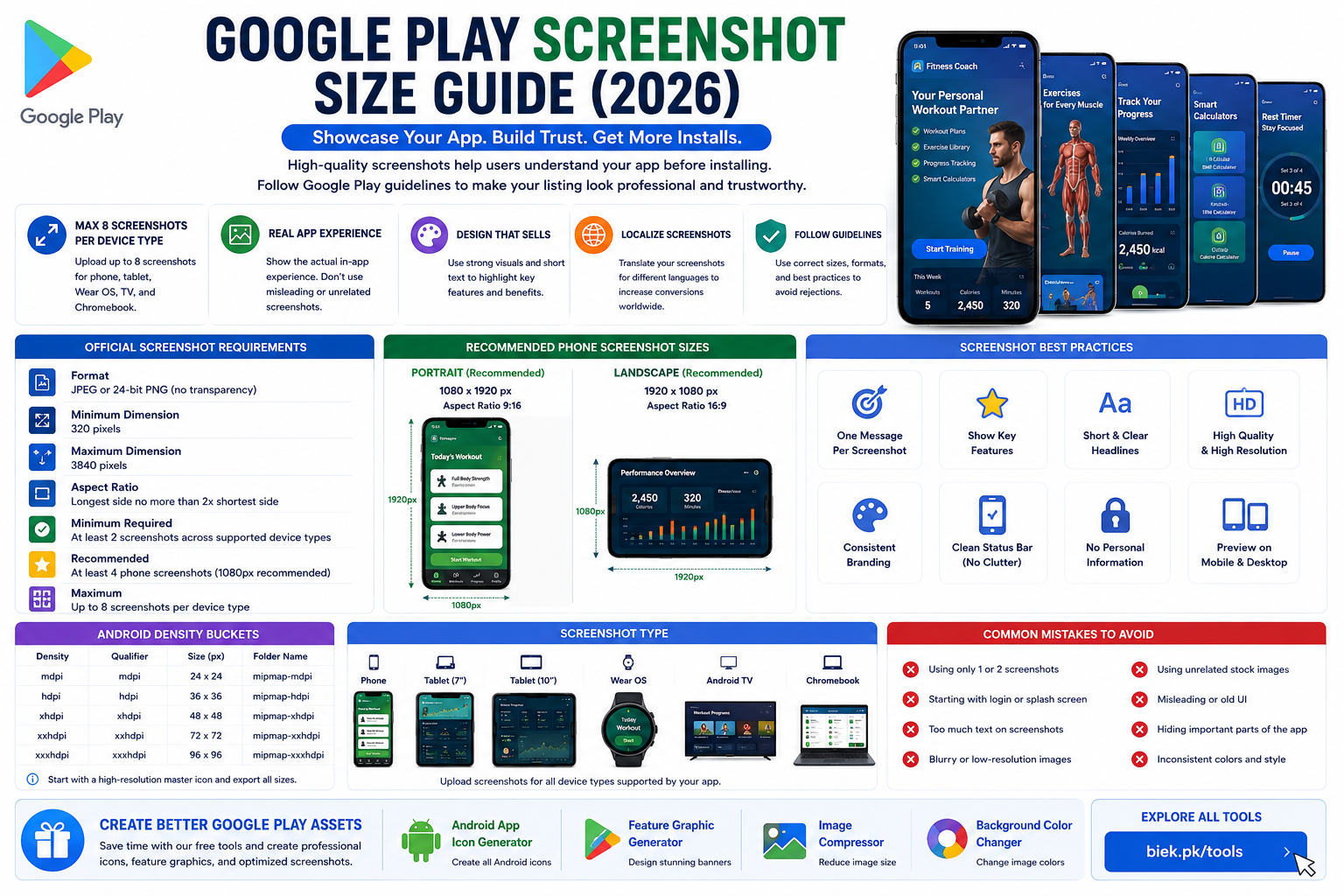
Google Play screenshot workflow showing phone dimensions, portrait and landscape formats, app interface capture, screenshot design, optimization, and Play Console upload.
The following sections explain each step in detail.
What Are Google Play Screenshots?
Google Play screenshots are preview images displayed on your application's store listing.
They help potential users understand:
- What your application looks like
- Which features it provides
- How the interface works
- What users can accomplish
- Whether the app appears professional and trustworthy
Screenshots may appear on your main store listing, Google Play search pages, promotional sections, and other Google surfaces.
Why Google Play Screenshots Matter
Users often review screenshots before reading the complete app description.
Professional screenshots can:
- Explain your app quickly
- Showcase important features
- Build trust
- Improve listing quality
- Support app-install decisions
- Strengthen your visual branding
Each screenshot should communicate one clear feature or benefit.
For example, a fitness application might use screenshots for:
- Workout plans
- Exercise library
- Muscle guide
- Fitness calculators
- Progress tracking
- Rest timer
This creates a simple visual story instead of showing random screens.
Official Google Play Screenshot Requirements
Google Play has specific technical requirements for screenshots.
Supported Formats
Use either:
- JPEG
- 24-bit PNG without transparency
PNG is often the better choice for app screenshots because it keeps text, icons, and interface elements sharp.
Minimum Screenshot Dimension
The minimum dimension is:
320 pixels
This means neither the width nor height should be below the required minimum.
However, using only the minimum size is not recommended because the screenshot may appear soft or pixelated on modern screens.
Maximum Screenshot Dimension
The maximum allowed dimension is:
3840 pixels
You do not normally need to export phone screenshots at the maximum size. A properly exported 1080 × 1920 image is usually sufficient for portrait phone screenshots.
Aspect-Ratio Limitation
The longest side of the screenshot cannot be more than twice the length of the shortest side.
Examples that work well include:
- 1080 × 1920
- 1920 × 1080
- 1080 × 2160
- 1200 × 1920
Avoid unusually long screenshots that exceed Google's accepted dimension relationship.
Recommended Phone Screenshot Size
For most Android applications, use:
Portrait
1080 × 1920 pixels
Aspect ratio:
9:16
Portrait screenshots work especially well for:
- Fitness apps
- Productivity apps
- Education apps
- Finance apps
- Social apps
- Utility apps
Landscape
1920 × 1080 pixels
Aspect ratio:
16:9
Landscape screenshots are suitable for:
- Games
- Video applications
- Drawing apps
- Media players
- Landscape-first interfaces
Use the orientation that accurately represents the real application experience.
How Many Screenshots Should You Upload?
Google Play allows up to eight screenshots for each supported device type.
Although the minimum publishing requirement is two screenshots across supported device types, uploading only two rarely provides enough information about a complete app.
For most applications, use between:
4 and 8 screenshots
A strong sequence could be:
- Main value proposition
- Most important feature
- Second key feature
- Unique functionality
- Personalization options
- Progress or results
- Additional tools
- Final supporting feature
Place your strongest screenshots first because users may not scroll through the complete gallery.
First Three Screenshots Matter Most
The first three screenshots should clearly communicate:
- What the app does
- Its most useful features
- Why users should choose it
Avoid beginning with:
- Login screens
- Splash screens
- Empty dashboards
- Settings pages
- Permission requests
Start with the strongest part of the app experience.
Show the Real Application Interface
Google recommends screenshots that demonstrate the actual in-app or in-game experience.
Your screenshots should accurately represent the current version of your app.
Do not show:
- Features that do not exist
- Misleading screens
- Unrealistic functionality
- Old interfaces
- Unrelated promotional images
Users should receive the same experience after installing the app.
Use One Message Per Screenshot
Each screenshot should focus on a single feature or benefit.
For example:
Personalized Workout Plans
Explore Exercises by Muscle
Track Your Fitness Progress
This structure is easier to understand than filling one image with many unrelated features.
Screenshot Text Guidelines
You may add a short tagline when it helps explain the feature.
Keep text:
- Brief
- Large
- Readable
- High contrast
- Relevant to the displayed interface
Avoid covering most of the app interface with marketing text.
As a practical rule, the application UI should remain the main visual focus.
Avoid Prohibited Marketing Claims
Do not add unsupported or misleading phrases such as:
- Number 1 App
- Best App
- Top Rated
- Million Downloads
- Limited Offer
- Install Now
- Download Now
- Try Now
Use factual feature-focused text instead.
Good example:
Calculate BMI, BMR and 1RM
Poor example:
Download the World's Best Fitness App Now
Tablet Screenshot Requirements
If your application supports tablets, Google Play allows you to upload tablet-specific screenshots.
Tablet screenshots help users understand how your application looks on larger screens.
Recommended categories include:
- 7-inch tablets
- 10-inch tablets
Use screenshots that accurately represent the tablet version of your application.
Wear OS Screenshots
If you're publishing a Wear OS application, you can also upload Wear OS screenshots.
These screenshots should display the actual smartwatch interface rather than promotional graphics.
Android TV Screenshots
Applications designed for Android TV should include television screenshots that demonstrate the TV interface.
Avoid uploading mobile screenshots for TV applications.
Chromebook Screenshots
If your application supports ChromeOS devices, consider uploading screenshots that showcase the desktop or Chromebook experience.
This helps users understand that your app works well on larger displays.
Portrait vs Landscape
Choosing the correct orientation depends on how your application is used.
Portrait Apps
Portrait screenshots work best for:
- Banking apps
- Fitness apps
- Educational apps
- Productivity apps
- Social networking apps
- Shopping apps
Landscape Apps
Landscape screenshots work best for:
- Racing games
- Video streaming apps
- Drawing applications
- Media players
- Adventure games
Use the same orientation that your users experience inside the application.
Add Device Frames
Placing screenshots inside modern smartphone frames often creates a more polished appearance.
Benefits include:
- Professional presentation
- Better visual hierarchy
- Cleaner branding
- Easier comparison
Avoid oversized or distracting device frames.
The application interface should remain the main focus.
Keep a Consistent Style
All screenshots should follow the same design language.
Maintain consistency in:
- Colors
- Fonts
- Layout
- Device frame
- Background
- Text position
A consistent visual identity makes your Play Store listing look more professional.
Use Short Headlines
Each screenshot should explain one feature.
Examples:
Workout Plans
Create personalized workout routines.
Exercise Library
Discover hundreds of guided exercises.
Fitness Calculators
Calculate BMI, BMR and daily calories.
Progress Tracking
Monitor your workout history.
Rest Timer
Stay consistent between sets.
Short headlines are easier to read than long paragraphs.
Highlight One Feature Per Screenshot
Avoid trying to explain your entire application on one screen.
Instead:
Screenshot 1
Main Benefit
Screenshot 2
Most Important Feature
Screenshot 3
Second Major Feature
Screenshot 4
Unique Functionality
Screenshot 5
Statistics or Results
Screenshot 6
Additional Tools
Each screenshot should communicate one clear idea.
Leave Enough Space
Do not cover the application interface with large text blocks.
Users still want to see your actual UI.
A balanced layout usually contains:
- Small headline
- Screenshot
- Simple background
- Plenty of white space
Use High-Resolution Screenshots
Always export screenshots directly from your application.
Avoid:
- Blurry images
- Compressed screenshots
- Cropped interfaces
- Stretched layouts
Modern Android phones have high-resolution displays, so your screenshots should look equally sharp.
Clean the Status Bar
Before capturing screenshots, remove unnecessary items from the status bar whenever possible.
Avoid showing:
- Low battery
- Missed calls
- Random notifications
- Alarm icons
- VPN indicators
- Weak network signals
A clean status bar makes screenshots look much more professional.
Remove Personal Information
Never include:
- Email addresses
- Phone numbers
- Home addresses
- Payment details
- Private conversations
- Customer information
Always use demo accounts when taking screenshots.
Localize Your Screenshots
If your application supports multiple languages, create screenshots for each major market.
For example:
English
Spanish
French
German
Arabic
Japanese
Localized screenshots often improve conversion rates because users see content in their own language.
Tell a Visual Story
Arrange screenshots in a logical order.
Instead of random images, guide users through the application.
Example for a fitness app:
- Personalized workouts
- Exercise library
- Muscle guide
- Calories calculator
- Progress tracking
- Rest timer
Each screenshot builds upon the previous one.
Screenshot Design Tools
Popular tools include:
- Figma
- Canva
- Adobe Photoshop
- Adobe Illustrator
These tools allow you to:
- Add backgrounds
- Insert headlines
- Create device mockups
- Export high-resolution screenshots
AI Design Tools
AI tools can speed up screenshot creation.
Popular options include:
- ChatGPT Image Generation
- Adobe Firefly
- Gemini
- Leonardo AI
- Midjourney
After generating backgrounds or illustrations, combine them with your real app screenshots for the best results.
Pro Tip
Before publishing, preview all screenshots together.
Ask yourself:
- Do they tell a story?
- Is the branding consistent?
- Can someone understand the app within five seconds?
If the answer is yes, you're ready to upload them to Google Play Console.
Google Play Screenshots vs Feature Graphic
Many developers confuse screenshots with the Google Play Feature Graphic, but they serve different purposes.
| Google Play Screenshots | Google Play Feature Graphic |
|---|---|
| Show the actual app interface | Promotes your app visually |
| Up to 8 images | Single banner |
| Explain features | Build brand identity |
| Increase user understanding | Create a strong first impression |
| Display app experience | Display marketing message |
A successful Google Play listing uses both assets together.
Google Play Screenshots vs App Icon
Your app icon, screenshots, and feature graphic each have a unique purpose.
| Asset | Purpose |
|---|---|
| App Icon | Represents your application |
| Feature Graphic | Promotes your brand |
| Screenshots | Demonstrate how the app works |
Together, these assets create a professional Play Store listing.
Screenshot Publishing Checklist
Before uploading your screenshots to Google Play Console, verify the following:
- ✅ Minimum 2 screenshots
- ✅ Recommended 4–8 screenshots
- ✅ High-resolution images
- ✅ JPEG or PNG format
- ✅ Correct orientation
- ✅ Clean status bar
- ✅ Consistent branding
- ✅ Readable headlines
- ✅ One feature per screenshot
- ✅ Real application interface
- ✅ No misleading marketing claims
- ✅ Previewed on desktop and mobile
Frequently Asked Questions
What is the recommended Google Play screenshot size?
For most Android phones:
Portrait
1080 × 1920 pixels
Landscape
1920 × 1080 pixels
Although Google supports other dimensions, these sizes work well for most applications.
How many screenshots should I upload?
Google Play allows:
Up to 8 screenshots per supported device type.
For the best presentation, upload between 4 and 8 screenshots.
Should I use PNG or JPG?
Both are supported.
PNG is usually the better option because it keeps text and UI elements sharper.
Can I add text?
Yes.
Short feature-focused headlines improve readability.
Examples include:
- Personalized Workouts
- Track Your Progress
- AI Image Generator
Avoid long paragraphs.
Can I use mockups?
Yes.
Modern device mockups often improve the appearance of your Play Store listing.
However, the actual application interface should remain clearly visible.
Should screenshots have the same background?
Yes.
Consistent backgrounds create a more professional appearance.
Can screenshots improve installs?
Absolutely.
Professional screenshots help users understand your application more quickly, increasing confidence before installation.
Should I localize screenshots?
If your app targets multiple countries, localized screenshots can significantly improve conversion rates.
Translate:
- Headlines
- Callouts
- Interface (when possible)
Related Articles
Continue learning with these Android publishing guides:
- Android App Icon Size Guide
- Android Adaptive Icons Guide
- Flutter Launcher Icons Guide
- React Native App Icon Guide
- Google Play Feature Graphic Size Guide
- Android Notification Icon Size Guide (Coming Soon)
Related Tools
Save time with our free Android publishing tools.
Android App Icon Generator
Generate launcher icons and Play Store icons from one high-resolution image.
Google Play Feature Graphic Generator
Create professional Play Store banners using the correct dimensions.
Compress Image Tool
Reduce image size without noticeable quality loss before uploading to Google Play.
Image Background Color Changer
Quickly create clean promotional graphics with solid-color backgrounds.
About This Guide
This guide is maintained by the biek.pk team and updated regularly to reflect the latest Google Play Console requirements and Android publishing best practices.
Whether you're building apps with Android Studio, Flutter, or React Native, our goal is to help you create professional Play Store listings that are both visually appealing and compliant with Google's guidelines.
Conclusion
Google Play screenshots are one of the most influential visual assets on your Play Store listing. They allow potential users to experience your app before downloading it, making them a powerful tool for improving engagement and conversions.
By following the recommended dimensions, using high-quality images, keeping your branding consistent, and telling a clear visual story, you can create screenshots that showcase your app professionally and help your listing stand out.
If you're preparing your app for release, combine well-designed screenshots with a professional app icon and feature graphic to build a polished, trustworthy Play Store presence.
🚀 Create Better Google Play Assets
Ready to publish your app?
Use our free Google Play Feature Graphic Generator together with our Android App Icon Generator to create professional Google Play assets that meet the latest publishing guidelines.