Flutter Launcher Icons Guide (2026): Generate Android & iOS App Icons Easily
Learn how to generate Flutter launcher icons for Android and iOS using the flutter_launcher_icons package. Includes setup, pubspec.yaml configuration, adaptive icons, troubleshooting, icon sizes, and a free Android App Icon Generator.
Flutter Launcher Icons Guide (2026)
One of the final steps before publishing a Flutter application is creating professional launcher icons. These icons appear on Android home screens, iPhones, app drawers, Settings, and app stores. A clean launcher icon improves your application's branding and creates a stronger first impression.
Fortunately, Flutter developers don't need to resize icons manually anymore. The flutter_launcher_icons package automatically generates every required Android and iOS icon from a single high-resolution image.
In this complete guide you'll learn:
- What Flutter Launcher Icons are
- How to install flutter_launcher_icons
- Configure pubspec.yaml
- Generate Android launcher icons
- Generate iOS app icons
- Adaptive icons
- Common errors
- Best practices
- Troubleshooting
- How to generate Play Store icons automatically
If you don't already have a properly sized app icon, generate one instantly using our free:
🚀 Quick Answer
Flutter Launcher Icons are automatically generated app icons created from one high-resolution image using the flutter_launcher_icons package.
After configuration, a single command generates every Android launcher icon and iOS app icon required by Flutter.
Flutter Launcher Icons at a Glance
| Platform | Generated Automatically |
|---|---|
| Android | ✅ Yes |
| iOS | ✅ Yes |
| Adaptive Icons | ✅ Yes |
| Play Store Icon | Use 512×512 PNG |
| Launcher Icons | Multiple densities |
Table of Contents
- What are Flutter Launcher Icons?
- Why Launcher Icons Matter
- Flutter Launcher Icon Sizes
- Install flutter_launcher_icons
- Configure pubspec.yaml
- Generate Android Icons
- Generate iOS Icons
- Adaptive Icons
- Common Errors
- Best Practices
- FAQ
Flutter Launcher Icons Workflow
If you're new to Flutter launcher icons, the infographic below gives you a quick overview of the complete workflow before we dive into the step-by-step instructions.
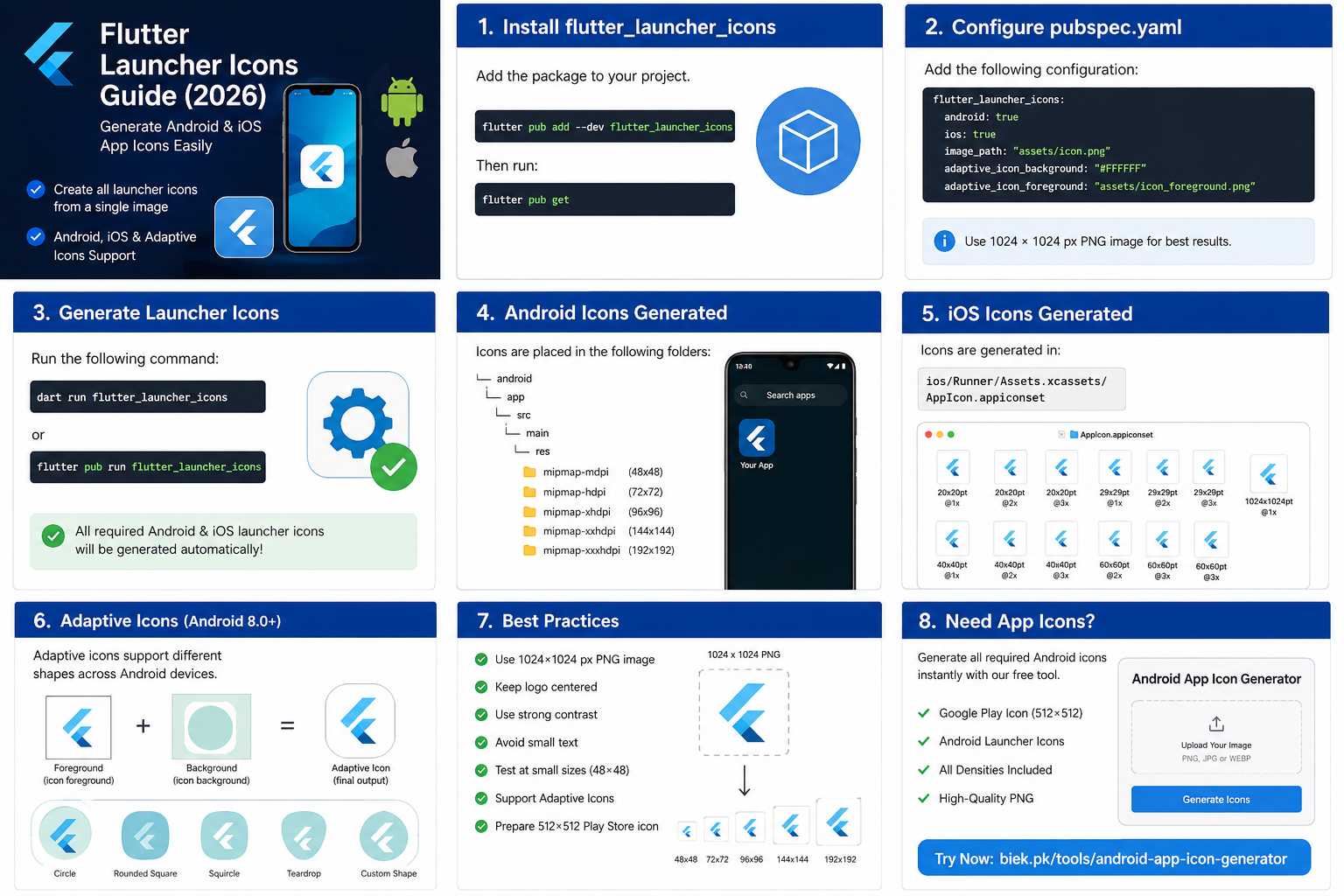
Complete Flutter Launcher Icons workflow showing package installation, pubspec.yaml configuration, Android launcher icon generation, iOS App Icons, adaptive icons, and Flutter best practices.
The following sections explain every step shown in the infographic in detail, including package installation, configuration, launcher icon generation, adaptive icons, troubleshooting, and publishing best practices.
What Are Flutter Launcher Icons?
Flutter Launcher Icons are the application icons displayed on Android and iOS devices.
Instead of manually creating dozens of image files, the flutter_launcher_icons package automatically generates every required icon size from one source image.
This saves developers hours of manual work while ensuring every icon follows the correct Android and iOS requirements.
Why Launcher Icons Matter
Your launcher icon is the first thing users notice.
It appears in:
- Android Home Screen
- App Drawer
- Google Play Store
- iPhone Home Screen
- Settings
- Recent Apps
- Search Results
A blurry or poorly designed icon can make even a great application look unprofessional.
Good launcher icons help:
- Improve branding
- Increase user trust
- Create a professional appearance
- Maintain consistency across devices
Flutter Launcher Icon Sizes
The package automatically creates Android launcher icons for every required density.
| Density | Size |
|---|---|
| mdpi | 48×48 |
| hdpi | 72×72 |
| xhdpi | 96×96 |
| xxhdpi | 144×144 |
| xxxhdpi | 192×192 |
For Google Play, you'll still need a 512 × 512 PNG app icon.
If you're unsure about Android icon requirements, read our Android App Icon Size Guide for a detailed explanation of every launcher icon size and Play Store requirement.
Need a Proper Flutter App Icon?
Start with a high-quality image.
Our Android App Icon Generator automatically creates:
- Google Play Icon
- mdpi
- hdpi
- xhdpi
- xxhdpi
- xxxhdpi
from a single upload.
👉 Generate Android Icons Free
https://biek.pk/tools/android-app-icon-generator
Install flutter_launcher_icons
The easiest way to generate launcher icons in Flutter is by using the flutter_launcher_icons package.
Instead of manually resizing dozens of images, this package automatically creates every required Android and iOS launcher icon from a single high-resolution image.
Step 1: Add the Package
Open your Flutter project and run:
flutter pub add --dev flutter_launcher_icons
Alternatively, add it manually inside your pubspec.yaml file.
dev_dependencies:
  flutter_launcher_icons: ^0.14.3
Then install the package.
flutter pub get
Configure flutter_launcher_icons
After installing the package, configure it inside pubspec.yaml.
A basic configuration looks like this:
flutter_launcher_icons:
  android: true
  ios: true
  image_path: "assets/icon.png"
This tells Flutter to:
- Generate Android launcher icons
- Generate iOS app icons
- Use the image located at
assets/icon.png
Recommended Source Image
For the best quality, your source icon should meet these requirements.
| Property | Recommendation |
|---|---|
| Size | 1024 × 1024 px |
| Format | PNG |
| Background | Transparent or Solid |
| Shape | Square |
| Quality | High Resolution |
Starting with a larger image produces cleaner launcher icons on both Android and iOS devices.
Generate Flutter Launcher Icons
Once you've configured pubspec.yaml, generate the launcher icons using:
dart run flutter_launcher_icons
Older Flutter projects may also use:
flutter pub run flutter_launcher_icons
The package automatically replaces the existing launcher icons inside your project.
Where Are Flutter Launcher Icons Stored?
After generation, Android launcher icons are placed inside:
android/app/src/main/res/
You'll find:
mipmap-mdpi
mipmap-hdpi
mipmap-xhdpi
mipmap-xxhdpi
mipmap-xxxhdpi
For iOS, icons are generated inside:
ios/Runner/Assets.xcassets/AppIcon.appiconset
Flutter automatically uses these generated assets when building your application.
Generate Android Launcher Icons
Android requires multiple launcher icon sizes for different screen densities.
Instead of exporting every icon manually, flutter_launcher_icons automatically generates:
| Density | Size |
|---|---|
| mdpi | 48 × 48 px |
| hdpi | 72 × 72 px |
| xhdpi | 96 × 96 px |
| xxhdpi | 144 × 144 px |
| xxxhdpi | 192 × 192 px |
These icons are copied into their respective mipmap folders.
Generate iOS App Icons
The same package also creates every required iOS application icon.
Simply keep:
ios: true
inside your configuration.
Flutter automatically creates all AppIcon sizes required by Xcode.
No manual resizing is required.
Generate Only Android Icons
If your application targets Android only, use:
flutter_launcher_icons:
  android: true
  ios: false
  image_path: assets/icon.png
This skips iOS icon generation and only updates Android launcher icons.
Generate Only iOS Icons
Likewise, for an iOS-only project:
flutter_launcher_icons:
  android: false
  ios: true
  image_path: assets/icon.png
Using Adaptive Icons
Modern Android devices support Adaptive Icons.
You can configure them like this:
flutter_launcher_icons:
  android: true
  ios: true
  image_path: assets/icon.png

  adaptive_icon_background: "#FFFFFF"
  adaptive_icon_foreground: assets/icon_foreground.png
The package automatically generates adaptive launcher icons compatible with Android 8.0 and above.
Common Installation Errors
Here are some common problems developers encounter.
Package Not Found
Run:
flutter pub get
again after editing pubspec.yaml.
Image Not Found
If you see:
File not found
Verify the image path:
image_path: assets/icon.png
Also ensure the image exists inside your project.
YAML Formatting Errors
YAML is indentation-sensitive.
Incorrect spacing can prevent Flutter from reading the configuration.
Always use spaces instead of tabs.
Launcher Icon Doesn't Change
If the old icon still appears:
Run:
flutter clean
Then:
flutter pub get
Finally:
dart run flutter_launcher_icons
This usually resolves cached launcher icon issues.
Pro Tip
Before generating launcher icons, make sure your logo has the correct dimensions.
If you don't already have a properly sized icon, use our free Android App Icon Generator.
It automatically creates:
- Google Play Icon
- Android Launcher Icons
- High-resolution PNG
ready for Flutter projects.
👉 https://biek.pk/tools/android-app-icon-generator
Flutter Adaptive Icons
Modern Android devices use Adaptive Icons instead of traditional launcher icons.
Adaptive Icons allow Android to display your application icon in different shapes depending on the device manufacturer.
For example, your app icon may appear as:
- Circle
- Rounded Square
- Squircle
- Teardrop
- Custom Shape
This creates a more consistent user experience across Android devices.
How Adaptive Icons Work
Adaptive Icons contain two separate layers:
- Foreground
- Background
Android combines these layers and applies different launcher masks automatically.
A simple configuration looks like this:
flutter_launcher_icons:
  android: true
  ios: true

  image_path: assets/icon.png

  adaptive_icon_background: "#FFFFFF"

  adaptive_icon_foreground: assets/icon_foreground.png
Adaptive Icon Safe Zone
One of the biggest mistakes Flutter developers make is placing logos too close to the edge.
When Android applies different icon masks, the edges may be cropped.
For the best results:
- Keep the logo centered.
- Leave enough padding.
- Avoid tiny text.
- Don't touch the borders.
- Use a simple composition.
Following these guidelines ensures your icon looks good on every Android launcher.
Flutter Launcher Icons Best Practices
A launcher icon represents your application before users even open it.
Following Google's design recommendations improves your app's professional appearance.
Use a High-Resolution Image
Always begin with:
1024 × 1024 pixels
Never upscale a smaller image.
Higher-quality source images produce sharper launcher icons.
Use PNG
PNG provides:
- Better quality
- Transparency support
- Cleaner edges
Avoid JPG because JPEG compression reduces image quality.
Keep the Design Simple
Simple icons are easier to recognize.
Avoid:
- Too much detail
- Small text
- Complex illustrations
Users should recognize your application instantly.
Use Strong Contrast
Icons with strong contrast stand out better in:
- Google Play search results
- Home Screen
- App Drawer
Test at Small Sizes
Reduce your icon to around:
48 × 48 pixels
If users can still recognize it, you've designed a good launcher icon.
Creating Flutter App Icons in Canva
Canva is a great option for beginners.
Recommended workflow:
- Create a new design.
- Use a canvas size of 1024 × 1024 px.
- Keep the logo centered.
- Export as PNG.
- Generate Flutter launcher icons.
Starting with a larger design improves quality.
Creating Flutter App Icons in Figma
Figma is one of the most popular UI design tools.
Recommended settings:
Frame:
1024 × 1024
Export:
PNG
Using vectors allows your icon to scale perfectly before exporting.
Creating Flutter App Icons in Photoshop
Adobe Photoshop also works well.
Recommended settings:
| Setting | Value |
|---|---|
| Canvas | 1024 × 1024 px |
| Resolution | 72 PPI |
| Format | PNG |
| Color Space | sRGB |
Save the exported image before generating launcher icons.
AI Generated Flutter App Icons
AI image generators can help you create unique launcher icons.
However, before publishing:
✔ Ensure the icon remains recognizable at small sizes.
✔ Avoid tiny text.
✔ Keep the logo centered.
✔ Test adaptive icon cropping.
✔ Export as PNG.
After generating your artwork, upload it to our Android App Icon Generator to instantly create Flutter-ready launcher icons.
Common Flutter Launcher Icon Mistakes
Many developers accidentally create poor-quality launcher icons.
Avoid these mistakes.
Using a Small Source Image
Starting with a 200 × 200 image often produces blurry launcher icons.
Always begin with 1024 × 1024 px.
Forgetting Adaptive Icons
Modern Android devices expect adaptive icons.
Ignoring them may result in awkward cropping.
Wrong Image Format
Use PNG.
Avoid JPG whenever possible.
Tiny Text
Launcher icons are displayed at very small sizes.
Text usually becomes unreadable.
Use symbols instead.
Poor Contrast
Icons with weak contrast disappear on dark wallpapers.
Test your icon on:
- White background
- Black background
- Colorful wallpaper
Forgetting Play Store Icon
Launcher icons are different from your Google Play listing icon.
You still need a dedicated 512 × 512 PNG for Google Play.
Need a Flutter App Icon?
Don't start with the wrong image.
Generate a high-quality Android launcher icon, Play Store icon, and Android-ready PNG using our free Android App Icon Generator.
👉 https://biek.pk/tools/android-app-icon-generator
Flutter vs Android Studio Launcher Icons
Although Flutter applications run on Android, managing launcher icons is much easier than in a traditional Android Studio project.
| Feature | Flutter | Android Studio |
|---|---|---|
| Generate Icons | Automatic | Manual |
| One Source Image | ✅ Yes | ❌ No |
| Android Support | ✅ Yes | ✅ Yes |
| iOS Support | ✅ Yes | ❌ No |
| Adaptive Icons | ✅ Yes | Manual Configuration |
Using the flutter_launcher_icons package saves time by generating all required Android and iOS icons from a single source image.
Flutter vs React Native App Icons
Both Flutter and React Native follow Android's launcher icon requirements, but the setup process is slightly different.
| Feature | Flutter | React Native |
|---|---|---|
| Package | flutter_launcher_icons | react-native-make |
| Android Icons | Automatic | Automatic |
| iOS Icons | Automatic | Automatic |
| Adaptive Icons | Supported | Supported |
| Easy Configuration | ⭐⭐⭐⭐⭐ | ⭐⭐⭐⭐☆ |
Regardless of your framework, you'll still need a high-quality source icon.
Flutter Launcher Icons Checklist
Before publishing your Flutter app, verify the following:
✅ Source image is 1024 × 1024 px
✅ PNG format
✅ Transparent or clean background
✅ Adaptive icon configured
✅ Android launcher icons generated
✅ iOS icons generated
✅ Google Play icon prepared (512 × 512 px)
✅ Icon looks good on dark mode
✅ Icon looks good on light mode
✅ Logo is centered
Completing this checklist helps ensure your app looks professional across Android and iOS devices.
Frequently Asked Questions
What are Flutter Launcher Icons?
Flutter Launcher Icons are application icons automatically generated for Android and iOS using the flutter_launcher_icons package.
Which package should I use?
The recommended package is:
flutter_launcher_icons
It is actively maintained and widely used in Flutter projects.
What image size should I use?
The recommended source image is:
1024 × 1024 px
This provides enough resolution to generate every required launcher icon.
Can Flutter generate Android icons?
Yes.
The package automatically creates all Android launcher icon sizes.
Can Flutter generate iOS icons?
Yes.
It also generates every required iOS AppIcon automatically.
Does Flutter support Adaptive Icons?
Yes.
You can configure adaptive icons by defining:
- adaptive_icon_foreground
- adaptive_icon_background
inside pubspec.yaml.
Can I use SVG?
No.
The flutter_launcher_icons package expects raster image formats such as PNG.
Should I use PNG or JPG?
PNG is recommended because it preserves image quality and supports transparent backgrounds.
Why isn't my launcher icon changing?
Try running:
flutter clean
flutter pub get
dart run flutter_launcher_icons
Then rebuild your application.
Where are Flutter launcher icons stored?
Android:
android/app/src/main/res/
iOS:
ios/Runner/Assets.xcassets/AppIcon.appiconset
Can I generate only Android icons?
Yes.
Set:
android: true
ios: false
inside pubspec.yaml.
Can I generate only iOS icons?
Yes.
Set:
android: false
ios: true
Does flutter_launcher_icons work with Flutter 3?
Yes.
The package supports modern Flutter versions.
Always use the latest stable release whenever possible.
Can I use Canva to design Flutter icons?
Absolutely.
Design your icon in Canva using a 1024 × 1024 px canvas, export it as PNG, and then generate launcher icons.
Does Flutter create the Google Play icon?
No.
You should separately prepare a 512 × 512 px Play Store icon.
You can generate one using our Android App Icon Generator.
Which launcher icon size is most important?
The most important source image is 1024 × 1024 px.
From this master image, Flutter can generate every launcher icon size.
Can launcher icons improve downloads?
While launcher icons do not directly improve search rankings, a professional icon can increase click-through rates and improve users' first impressions of your app.
Related Resources
If you're publishing a Flutter application, these guides may also help:
- Android App Icon Size Guide
- Google Play Feature Graphic Size Guide
- Android Adaptive Icon Guide
- Google Play Screenshot Size Guide
You can also use these free tools on biek.pk:
- Android App Icon Generator
- Google Play Feature Graphic Generator
- Compress Image to 20KB
- Image Background Color Changer
About This Guide
This guide is regularly updated according to the latest Flutter and Android development recommendations.
Last Updated: July 2026
The information in this article is based on Flutter documentation, Android launcher icon requirements, and Google Play publishing guidelines.
Our goal is to help developers create professional launcher icons quickly while following the latest best practices.
Generate Flutter Launcher Icons in Seconds
Need a properly sized app icon?
Our Android App Icon Generator helps you create:
✅ Google Play Icon (512 × 512)
✅ Android Launcher Icons
✅ High-Resolution PNG
Ready for:
- Flutter
- Android Studio
- React Native
- Native Android Projects
Simply upload your logo and generate every required Android icon size in seconds.
👉 Generate Android Icons Free
https://biek.pk/tools/android-app-icon-generator
Final Thoughts
Using flutter_launcher_icons is the easiest and most reliable way to generate launcher icons for Flutter applications.
Instead of manually resizing images, you can automate the entire process with a single command while ensuring your app follows Android and iOS icon requirements.
For the best results, start with a high-quality 1024 × 1024 PNG, configure flutter_launcher_icons, and use our free Android App Icon Generator to create Play Store-ready assets for your next Flutter project.